
Practical business guide
Before your business adopts passkeys, plan for a lost device
Check where a passkey is stored, who can recover the account and how to rehearse an alternative sign-in without locking anyone out.
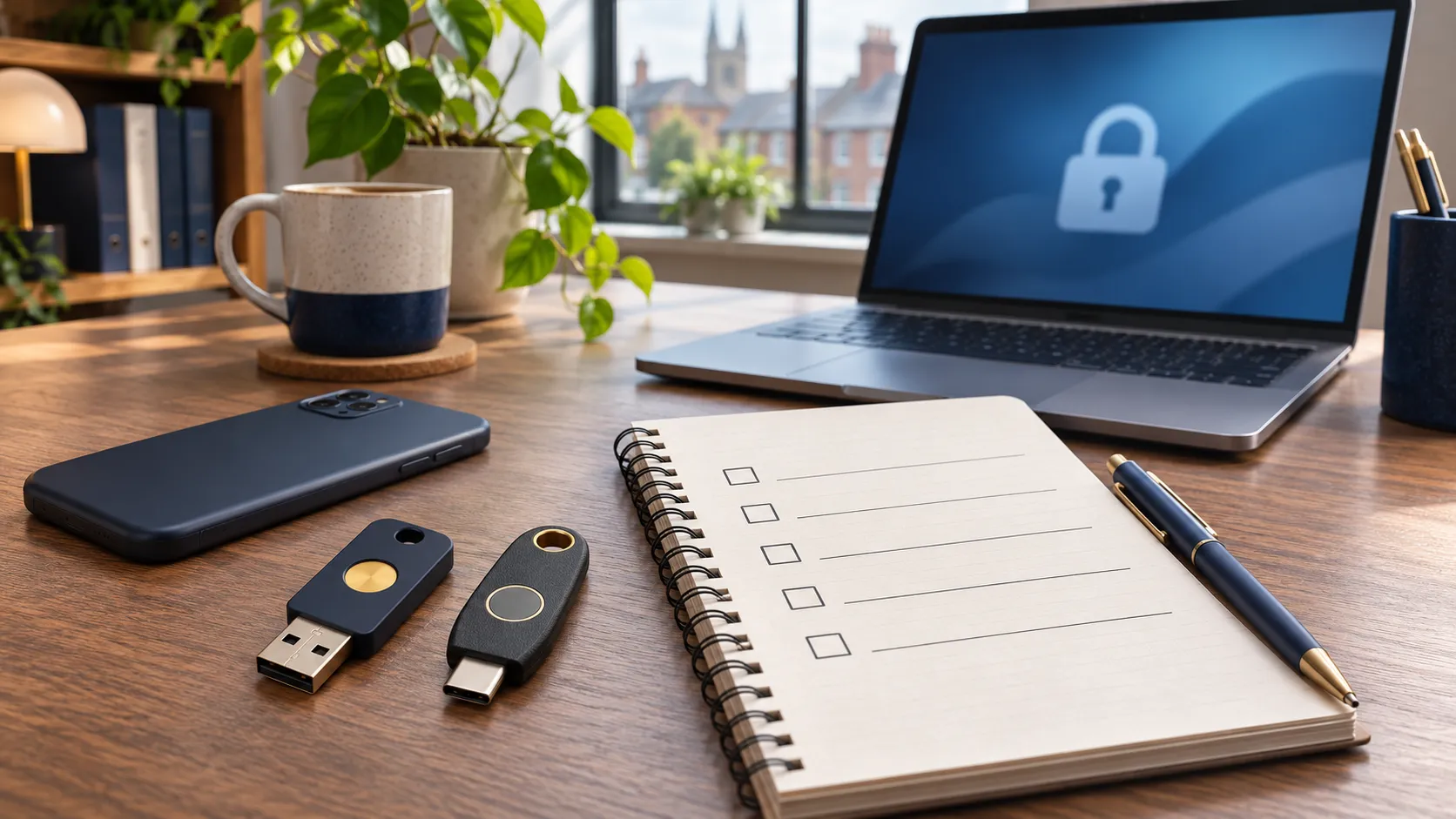
Your team is ready to replace a familiar password with a passkey. Before changing a business-critical account, ask a less glamorous question: what happens if the usual phone or laptop is unavailable tomorrow?
This guide is an original AIT planning exercise based on documentation checked on 24 November 2026. It is not a new security alert, a tested recovery procedure for your account or a recommendation to weaken sign-in protection.
Find out where the passkey lives
Depending on the provider and setup, a passkey may be device-bound or synchronised through a credential manager. Those arrangements have different recovery dependencies. Microsoft explains the distinction and notes that organisational policy can restrict available options. Do not assume that a key shown on a phone will automatically be available on every replacement device.
Ask your administrator which arrangement the particular account supports and permits. Record the storage category, approved devices and responsible role. Keep the account's actual secrets out of the worksheet.
Agree an approved alternative before changing anything
For each important service, identify the documented recovery route and the person allowed to use it. Is the alternative another approved enrolled device, a separately registered security key or an administrator-managed recovery process? Check the service's own instructions rather than assuming these options are interchangeable.
For Google Accounts, Google's passkey guidance distinguishes personal and Workspace settings, warns against shared devices and describes removing a passkey associated with a lost device. These are provider-specific instructions; they are not a universal menu for other services.
Use a short recovery readiness sheet
ACCOUNT RECOVERY READINESS — no secrets
Service / account owner: _______________
Approved passkey storage type: _________
Administrator or support role: _________
Documented alternative route: __________
Where its instructions are held: _______
Who can authorise recovery: ____________
Last rehearsal / observed result: ______
Next review / responsible person: ______
This worksheet is AIT's suggested format. Do not put PINs, passwords, recovery codes or copies of private keys in it. Store any actual recovery material separately under your organisation's approved controls.
Rehearse without removing your working access
- Obtain permission and choose a low-risk test account where the provider and organisational policy allow it.
- Keep the current approved sign-in method available. Do not reset the device, delete its passkey or sign out every administrator to simulate a loss.
- With the administrator, follow the documented alternative on an approved device. Stop if the procedure requires an unplanned production change.
- Record the actual result, required approvals and any unavailable option. A successful test for this account does not prove recovery for every business service.
- Assign the unresolved steps before expanding the rollout.
Include departures and device replacement
Ask how access is reviewed when someone leaves or changes equipment. Avoid personal workarounds that nobody else is authorised to support. If a real device is lost, use the incident process and provider instructions; do not improvise by sharing another person's credentials.
AIT Technology can help adapt account ownership, onboarding and recovery processes to your departments. Start with the cybersecurity operations manual and the offline incident contact card. Any technical rollout should be scoped against your actual service and policy.
Sources checked 24 November 2026: the Microsoft and Google documentation linked above. Neither page is presented here as a newly published announcement. No live customer account was changed for this article.